Overview: What are we talking about?
In this article, we will review the process of gate check messaging within Community Pass.
This article includes:
- Adding Gate Check Messages
- Editing Gate Check Messages
- Deleting Gate Check Messages
- Viewing The Gate Check Message Home page
Helpful Hints:
- Gate Check Messaging allows your organization to create messages that appear during check-in or check-out based on rules you define. For example, you may want to have a message appear for members under a certain age reminding the gatekeeper that children must be accompanied by an adult.
- In addition, you can choose to restrict entry based on certain parameters you define such as when an account is delinquent.
Adding Gate Check Messages
Follow these steps to add gate check messages:
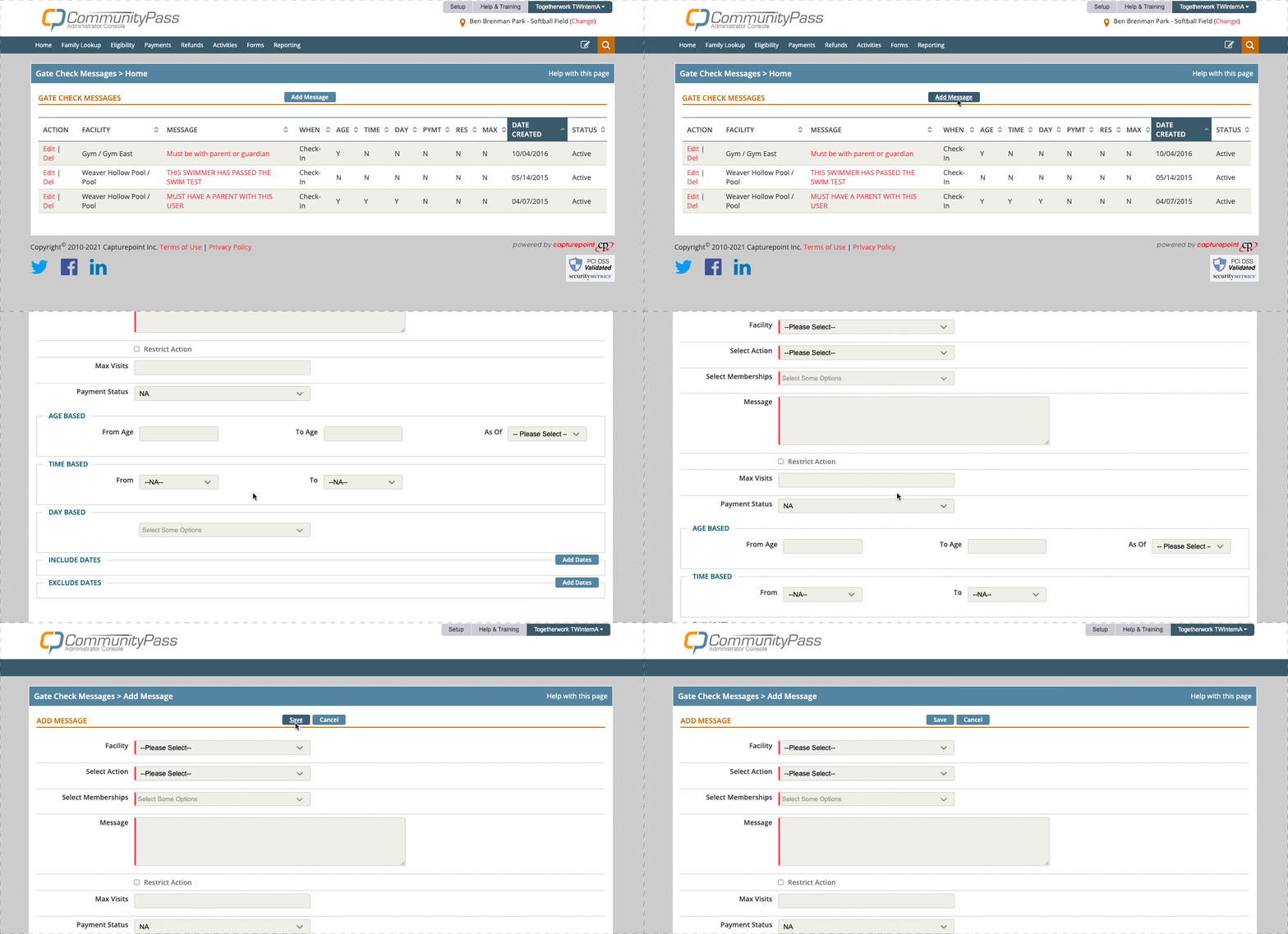
- On the Gate Check Messages Home page, click on Add Message. The Add Message page will appear.
- On the Add Message page, enter the required information correctly.
- Click Save when finished or Cancel to return to the Gate Check Messages Home page.
- The fields available on the Add Message page are explained below:
- Facility: From the dropdown list, select a facility where the message should be displayed. If this message is to be displayed across more than one facility, then the generation of separate messages is required for each location.
- Select Action: Select when you want the message to display. Options are either "Check-in" or "Check-out".
- Select Membership: Select the membership type(s) that the message should display for. To select more than one membership type, hold down the shift key when making your selections. At least one membership program is required when creating a checkpoint message.
- Message: Type the message as you would like it to display upon check-in or check-out
- Restrict Action: Click on this checkbox to restrict a member from entering the facility for the parameters defined. When checked, the member's status will be considered "invalid" upon check-in (or check-out).
- Payment Status: If the message should be displayed only for members with outstanding balances, select from one of the following options:
- "Outstanding balance for this membership"- If the individual has an outstanding balance for any of the selected membership programs, the message will display.
- "Outstanding family balance for this season"– If the family has an outstanding balance for the season for which this individual’s membership is a part, the message will display.
- "Outstanding family balance" (regardless of season)– If there is an outstanding balance for this family for any season, the message will display.
- Age-Based: If applicable, type in the age range of the member for when the message should be displayed in the "from age" and "to age" boxes. In the "As Of" dropdown list, select "Today" if the member must be the required age by the current day, "Season Start" if the member must be the required age by when the season starts, or "Season End" if the member must be the required age by when the season ends.
- Time-Based: To restrict the message to a specific time period, select a "from" and "to" time from the dropdown lists.
- Day Based: To restrict the message to a specific day or days of the week, select the day(s) from the dropdown list. To select multiple days, hold down the shift key when making your selections.
- Include Dates: To include any additional dates, click Add Dates and enter the date. Individual dates must be entered, not a date range. Multiple dates may be entered. Click the ‘X’ next to the date to remove. Any dates added will override the day-based option for the message only.
- Exclude Dates: To exclude any dates, click Add Dates and enter the date. Individual dates must be entered, not a date range. Multiple dates may be entered. Click the ‘X’ next to the date to remove. Any dates added will override the day-based option for the message only.
Editing Gate Check Messages
Follow these steps to edit gate check messages:
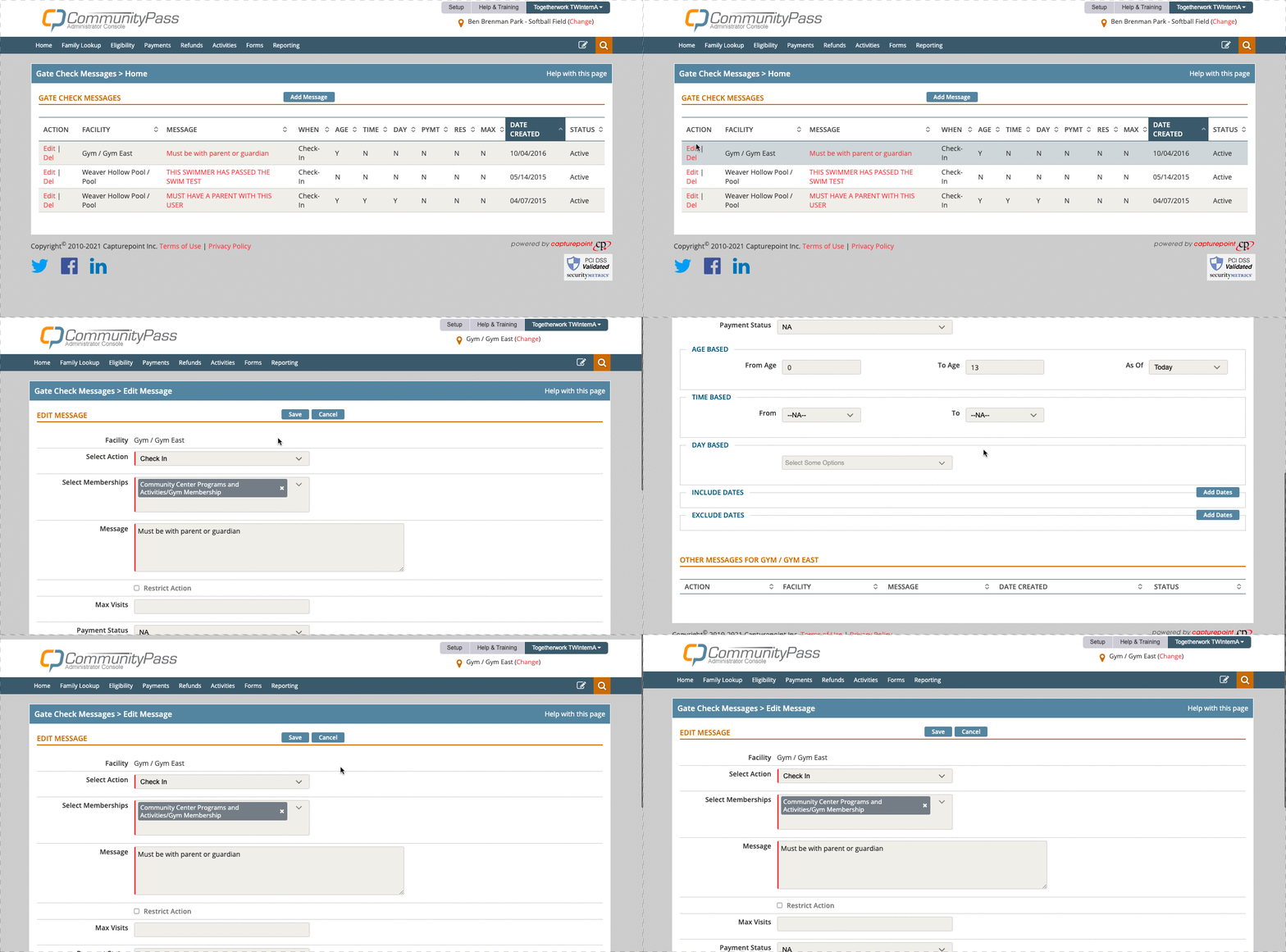
- On the Gate Check Messages Home page with messages listed, click Edit on the far left side of the message you want to edit. The Edit Message page will appear.
- Make the changes you want to make in different fields.
- Click Save when finished or Cancel to the Gate Check Messages Home page.
Deleting Gate Check Messages
Follow these steps to delete gate check messages:
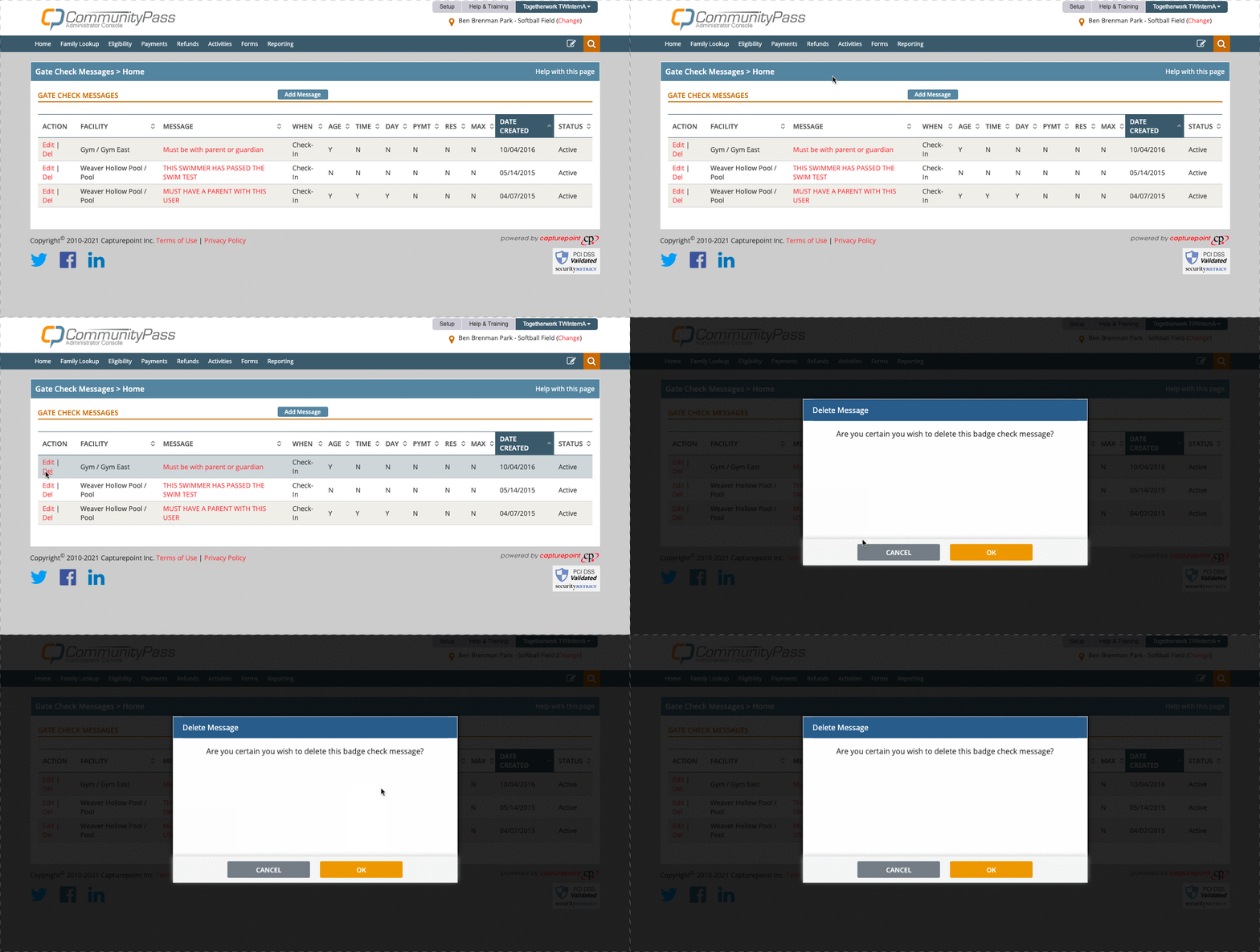
- On the Gate Check Messages Home page, click the Delete link on the far left side of the message you want to delete. A confirmation message will appear.
- Click OK to continue or Cancel to return to the previous screen and cancel the operation.
Viewing The Gate Check Message Home page
Follow this step to view the gate check message home page:
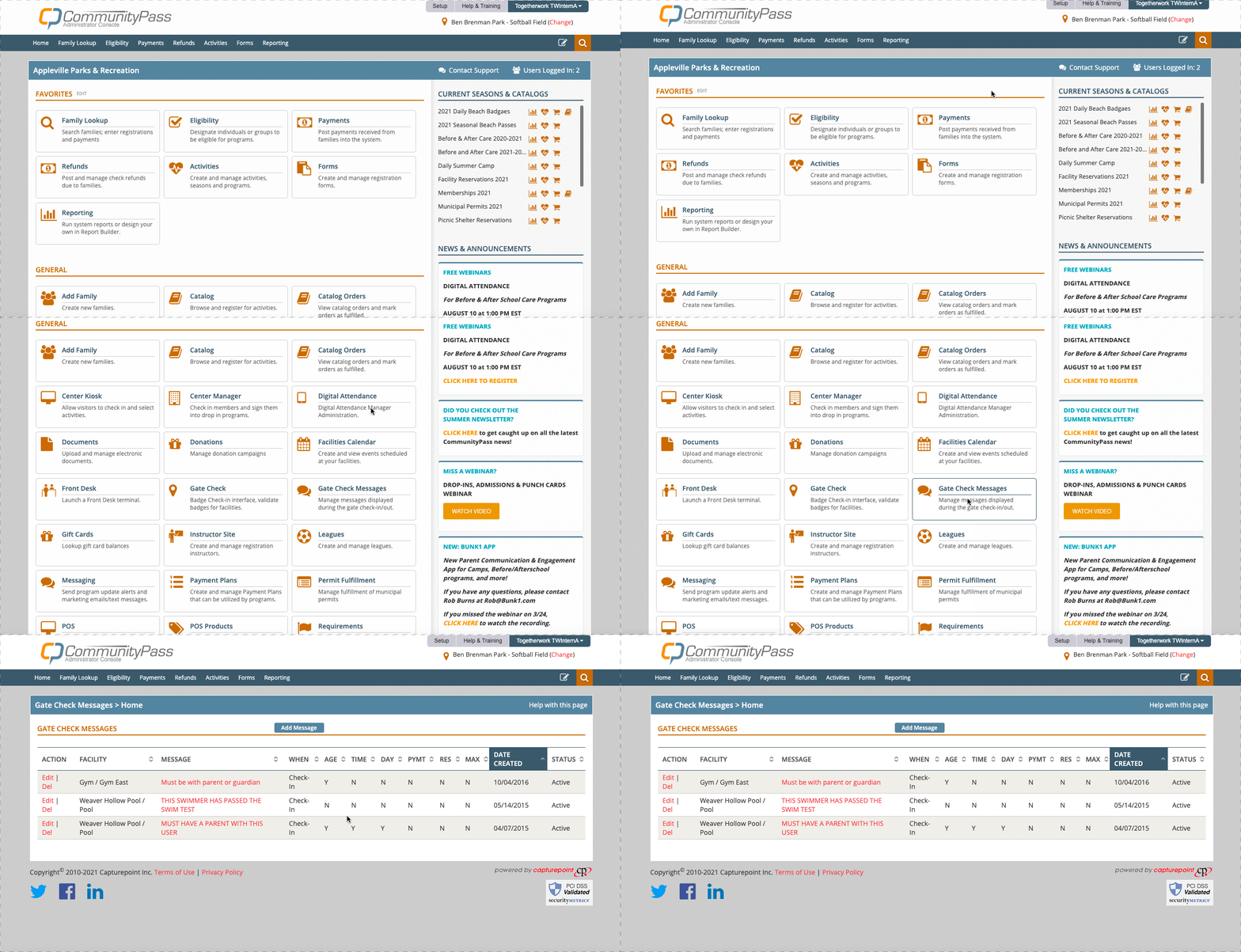
- On the Administrator Home page, scroll down and click Gate Check Messages. The Gate Check Messages Home page will appear with messages listed.